Making changes in Ableton
How to install Maestra for Ableton Live on Windows and Mac
Install Maestra for Ableton Live on Windows or Mac: the requirements, the installer, activation, the Remote Script and the Control Surface step in Live.
By MaestraReviewed by William FrenchPublished Updated 5 min read
The short answer: leave your email, run the installer from the link we send, then connect Ableton Live once. Connecting means three things. You authorize Maestra in your browser. You install the Maestra Remote Script from inside the app. Then you restart Live and pick Maestra as a Control Surface. After that, Maestra works in every set you open.
This guide walks through each step on Windows and on Mac, and says what to check if Live does not connect.
What you need
Check these before you start. They are the supported setups for early access.
- Windows: Windows 10 (version 2004 or later) or Windows 11, 64-bit.
- Mac: macOS 13 or later on a Mac with Apple silicon. Intel Macs are not supported.
- Ableton Live: Ableton Live 11.3 or later, any edition, on the same computer.
Maestra is free, and there is no card to enter.
Step 1: leave your email
Go to the Get started page and fill in the form. It asks for your email, the software you use and your computer, so the right build reaches you. It takes about 20 seconds. Ableton Live users usually have the download link within a few minutes.
If you already have your invite or a code, your downloads are on your account page.
Step 2 on Windows: run the installer
- Open the download link in your invite email. You can also sign in to your account and download the Windows build there.
- Open the installer and follow it. It takes under a minute. It sets up everything Maestra needs and asks for no administrator password.
- If Windows says it protected your PC, choose More info, then Run anyway.
- On the last page, leave Launch Maestra Agent ticked and finish.
Step 2 on Mac: drag Maestra Agent into Applications
- Open the download link in your invite email, or sign in to your account and download the Mac build there.
- Open the DMG and drag Maestra Agent into Applications.
- The build is signed and notarised by Apple, so macOS opens it without any override.
- Open Maestra Agent from your Applications folder. macOS asks once to confirm opening an app downloaded from the internet; choose Open.
Step 3: connect Ableton Live
The first time Maestra opens, it walks you through this. The steps are the same on both computers.
Authorize Maestra
Choose Authorize Maestra. Your browser opens. Confirm the code shown there, and the app is activated.
If you were given a code instead, open Settings, go to Activation, choose I have an activation code and then Activate. Settings is the gear at the top right, or Ctrl+, (Cmd+, on a Mac).
Install the Remote Script
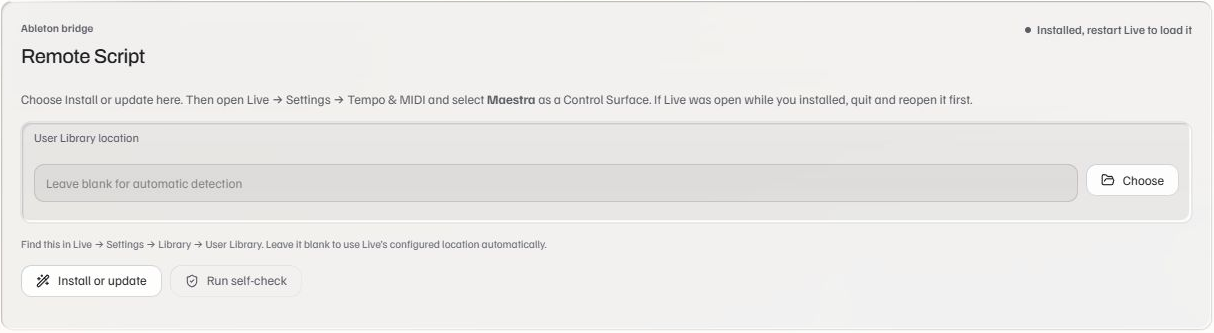
Choose Install or update. This adds the Maestra Remote Script to Live. The Remote Script is the one-time piece that lets Maestra read your session and make changes in it.
You can run it again any time from Settings › Ableton. The User Library location field on that card can stay blank.
 View full size ↗
Restart Live once
Quit Ableton Live and open it again. Live only loads new Remote Scripts when it starts. If Live was open during the install, this restart is required.
Pick Maestra as a Control Surface
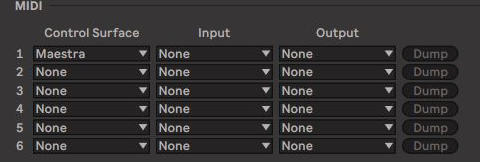
In Live, open Settings › Tempo & MIDI. In one of the Control Surface slots, select Maestra. Leave its Input and Output set to None. The app sees Live answer by itself.
 View full size ↗
Say hi
Type a first message in the chat. A good first one is "What's in this session?" Maestra reads the open set and tells you what it sees.
From then on, Ctrl+Alt+Q (Cmd+Option+Q on a Mac) brings Maestra up over Live from anywhere, while Maestra is running.
If Live does not connect
Work through these in order.
- In Live's Settings › Tempo & MIDI, check that Maestra is still selected as a Control Surface.
- Quit Live and open it again.
- In Maestra, go to Settings › Ableton and choose Run self-check. It tests the link between the app and Live.
If the self-check still fails, run Install or update again, then restart Live one more time.
Updates after the install
Maestra checks for new versions itself, about once a day. It never downloads or restarts on its own. When an update is ready, the notice offers Update now. Save your work first: Maestra downloads the update, checks it, quits, replaces itself and opens again. Not now snoozes it for a week.
Versions before 1.1.0 offer Download update, then Open installer instead. On a Mac, quit Maestra first with Cmd-Q or from the M icon in the menu bar; the red close button only hides it.
After an update, Maestra refreshes its Remote Script. Live keeps running the old one until it restarts, so the header says "Restart Live to finish updating Maestra." Quit and reopen Live and the notice clears.
You can also check by hand in Settings › App › Updates, which has Check for updates and Skip this version.
Getting help
Once Maestra is running, ask Maestra. It answers questions about its own settings in the chat, in your own words. "Where is voice input?" or "Why can't I switch Turbo on?" both work.
A person helps with two things only: activation and installation. If the licence will not activate, or the app will not install or start, email support@maestralabs.com with the version number. You find the version in Settings › App › Version.
Summary
Installing Maestra takes three steps: leave your email, run the installer from the link we send, then connect Live once by authorizing Maestra, installing the Remote Script, restarting Live and picking Maestra as a Control Surface. You need Windows 10 or 11, or macOS 13 or later on Apple silicon, and Ableton Live 11.3 or later, any edition. After that, Maestra works in every set you open.
Get Maestra
Put Maestra on your own session
Maestra Agent is free, with no card. Leave your email and the download link comes by email.
More guides on the learn page.